
Top 5 File Renamer Tools to Organize Your Files Fast in 2026
Do you have hundreds of files sitting on your computer with messy names?
Most people do. And most people ignore the problem until it becomes a serious headache.
Photographers deal with names like IMG_4521.JPG. Office workers drown in files called Document_Final_v3_REAL_FINAL.docx. Content creators struggle with folders full of unnamed exports.
The good news is simple. A good file renamer solves all of this fast.
A file renamer is a tool that renames multiple files at once. You set your rules. The tool applies them in seconds. Your files go from chaotic to organized without any manual work.
In this blog, we cover the top 5 file renamer tools available today. We look at features, ease of use, performance, and value. By the end, you will know exactly which file renamer is right for you.
Let us get started.
Why You Need a File Renamer
Renaming files one by one is slow. It is also frustrating and error-prone.
Think about this for a moment. You have 600 photos from a single event. Each one has a camera-generated name. You need them renamed with the date, an event code, and a number.
Doing that manually takes hours. A file renamer does it in seconds.
Additionally, manual renaming is inconsistent. You forget a convention halfway throughor you make a typo or skip a number. These small mistakes add up quickly.
Furthermore, a file renamer brings consistency to every batch. You set the rules once. The tool applies them perfectly every single time.
Here are the biggest benefits of using a file renamer.
Speed. Rename thousands of files instantly. No waiting. No repetition.
Consistency. Every file follows the same naming rules. No exceptions.
Accuracy. No typos, skipped numbers or formatting errors.
Organization. Clean, meaningful file names make everything easier to find.
Time savings. Spend your time on important work instead of renaming files manually.
A file renamer is not a luxury. For anyone who deals with large numbers of files regularly, it is a necessity.
What to Look for in a File Renamer
Not every file renamer is the same. Some are simple and free. Others are powerful and paid. The right choice depends on your needs.
Here are the key things to look for before you pick a file renamer.
Batch Processing
The whole point of a file renamer is speed. Any good tool should process hundreds or thousands of files in seconds. Slow batch processing defeats the purpose entirely.
Renaming Flexibility
Basic tools let you add a prefix or change an extension. Advanced file renamer tools let you build complex rules using metadata, counters, date formats, and regular expressions. More flexibility means more power.
Live Preview
This feature is critical. A live preview shows you exactly what the renamed files will look like before you apply any changes. It prevents costly mistakes. Always look for a file renamer that includes this.
Metadata Support
For photographers, metadata support is essential. A metadata-aware file renamer can read EXIF data from image files. That means you can rename photos automatically based on the date taken, camera model, GPS location, and much more.
Undo Functionality
Mistakes happen. A good file renamer should let you reverse any renaming action instantly. Without an undo option, a single mistake on a large batch can be a serious problem.
Platform Support
Most file renamer tools are Windows-only. Always check platform compatibility before committing to any tool.
Price
Free file renamer tools can be excellent. Paid tools should offer enough extra value to justify the cost. This list covers both options.
The Top 5 File Renamer Tools
Here are the best file renamer tools available today. Each one is reviewed in full detail below.
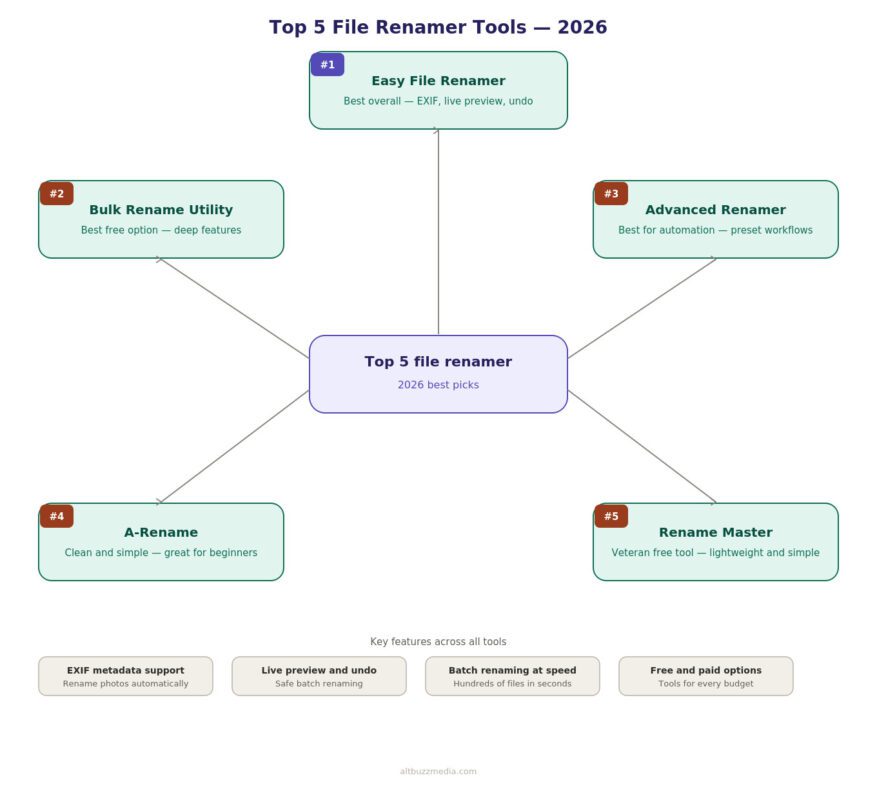
1. Easy File Renamer | Best Overall File Renamer
When it comes to renaming files quickly and cleanly, Easy File Renamer takes the top spot. It is the best all-round file renamer on this list.
No other tool combines ease of use, powerful features, and reliable performance in the same way. That is what makes this file renamer stand out from every other option.
First Impressions
The interface is clean and organized. Everything you need is visible right away. You do not need to search through menus or guess where things are.
You load your files, choose your renaming method, preview the results, and apply. The process is smooth from beginning to end.
Even first-time users feel confident within minutes. That kind of approachability is rare in powerful software.
Renaming Modes
Easy File Renamer offers a wide range of renaming modes. Each one is clearly labeled and easy to understand.
Replace text. Find any text in a file name and replace it with something else. This works on part of a name or the entire name.
Add prefix or suffix. Add text to the start or end of every file name in your batch. This is perfect for adding project codes, client names, or date stamps.
Insert text at position. Place text at any specific spot within a file name. This gives you very precise control.
Change case. Convert file names to uppercase, lowercase, title case, or sentence case in one click.
Remove characters. Strip unwanted characters, extra spaces, or specific symbols from file names automatically.
Numbering and sequencing. Add automatic sequence numbers to any batch. You control the starting point, the increment, the padding, and the position.
Change file extension. Rename extensions across a whole batch. Convert .jpeg to .jpg or make any other extension change you need.
Regular expressions. For advanced users, regex support unlocks extremely precise renaming control.
Every mode is accessible from a simple dropdown. There are no nested menus to dig through. This design saves time on every session.
EXIF Metadata Support
This is where Easy File Renamer truly shines as a photo file renamer.
The tool reads EXIF metadata directly from image files. So you can rename your photos based on information that is already inside the file. No manual data entry is needed.
Rename by date taken, by camera model, by lensor, by GPS coordinates or by ISO or shutter speed. The options are extensive.
For a photographer returning from a shoot with 600 RAW files, this feature is a game changer. Set your naming template once. Apply it to the entire batch. Every file gets a meaningful, consistent name in seconds.
Easy File Renamer also supports ID3 tags for music files. You can rename MP3s based on artist name, album title, track number, and song title automatically.
Live Preview
The live preview in Easy File Renamer is one of the best in the category.
As you build your renaming rules, the preview updates in real time. You see the original file name on the left and the proposed new name on the right for every file in your batch.
If something looks wrong, you adjust the rule. The preview updates instantly. This prevents mistakes before they happen.
Undo Feature
Easy File Renamer includes a full undo function. Any renaming action can be reversed in a single click.
This feature alone sets it apart from most competitors. When you work with thousands of files, the ability to undo a batch rename is invaluable. It gives you confidence to work without fear.
Folder Renaming
Easy File Renamer also handles folder renaming. You apply the same powerful rules to your folders. This helps you maintain consistency across your entire storage system.
Performance
Speed is excellent. Large batches process in seconds. There is no waiting around. The tool is quick and responsive even with very large file selections.
Who Should Use Easy File Renamer
Easy File Renamer works for a very wide range of users.
Photographers love the EXIF metadata support and live preview. Post-shoot organization becomes effortless.
Content creators managing large media libraries appreciate the speed and flexibility. Videos, images, audio files, and documents are all handled well.
Business professionals dealing with documents, invoices, or client files benefit from the batch processing and consistent naming rules.
Beginners find the clean interface completely approachable. There is no steep learning curve.
Advanced users who need regex support find that the tool handles complex demands without any trouble.
Very few tools serve all of these audiences well. Easy File Renamer does.
Platform and Pricing
Easy File Renamer is available for Windows. A free trial lets you test the full feature set before paying. The paid version is priced fairly for what it delivers.
Pros
- Clean and intuitive interface
- Wide range of renaming modes
- Full EXIF and ID3 metadata support
- Excellent live preview
- Undo functionality
- Handles files and folders
- Fast batch processing
- Works for beginners and advanced users
Cons
- Windows only
- Some advanced features need the paid version
Verdict
Easy File Renamer is the best file renamer available today. It earns its position through thoughtful design, powerful features, and dependable performance. If you only try one tool from this list, choose this one.
2. Bulk Rename Utility | Best Free File Renamer
Bulk Rename Utility is one of the most well-known free file renamer tools for Windows. It has been around for many years. For users who want maximum power without spending anything, it remains a strong choice.
First Impressions
The first thing you notice is how busy the interface is. Every renaming option appears on a single screen. Panels, checkboxes, dropdowns, and input fields fill the window from edge to edge.
This is both its greatest strength and its biggest weakness. Everything is accessible immediately once you know where to look. However, getting there takes real effort. New users often feel overwhelmed by the volume of options.
Renaming Features
Despite the visual busyness, the feature depth here is impressive for a free file renamer.
Bulk Rename Utility supports text replacement, prefix and suffix addition, character removal, sequential numbering, date and time insertion, extension changes, case conversion, and regular expressions. There are over 15 distinct renaming panels.
You can also combine multiple renaming actions in a single pass. For example, you could remove unwanted characters, add a date prefix, change the case, and add a sequence number all at once. This layered approach is powerful once you understand how to use it.
The tool also supports folder renaming and handles files inside subfolders simultaneously.
Metadata Support
Bulk Rename Utility reads EXIF data from photos. This allows for date-based and metadata-based renaming. The implementation works, though it is not as smooth or intuitive as Easy File Renamer.
Live Preview
A preview column shows proposed new names alongside original names. This is helpful. However, the cluttered interface means the preview area competes for screen space with all the option panels.
Undo Functionality
This is a notable weakness. Bulk Rename Utility does not offer a native undo feature. Once you apply a batch rename, you cannot reverse it from within the tool. Always back up your files before using it on important batches.
Who Should Use Bulk Rename Utility
This file renamer is ideal for experienced Windows users. It suits people who are comfortable with a technical interface and willing to spend time learning the tool.
It is also the obvious choice for anyone who needs a powerful free option and accepts the learning curve.
Beginners and photographers who want a smoother experience are better served by Easy File Renamer.
Platform and Pricing
Windows only. Completely free for personal use.
Pros
- Completely free
- Very deep feature set
- Supports folders and subfolders
- Fast processing
- EXIF metadata support
Cons
- Extremely cluttered interface
- Steep learning curve
- No native undo feature
- Windows only
Verdict
A genuinely powerful free file renamer. The interface is its greatest weakness. For users who can handle the complexity, it delivers. For everyone else, the experience is unnecessarily frustrating.
3. Advanced Renamer | Best File Renamer for Automation
Advanced Renamer takes a different approach to file renaming. Instead of offering a panel of options all at once, it uses a method-based system. You build renaming workflows by stacking individual actions together.
This system is uniquely powerful for users who run the same renaming workflows repeatedly.
First Impressions
The interface is cleaner than Bulk Rename Utility but more involved than Easy File Renamer. The learning curve sits somewhere between the two.
The main window shows your file list on the right and your method stack on the left. Building a workflow means adding methods from a menu and configuring each one.
The Method System
Each method performs one specific renaming action. For example, one method might replace text. Another might add a numbered sequence. A third might insert a date.
You stack these methods in order. When you apply the workflow, Advanced Renamer runs each method in sequence. The result is a layered transformation that can be very precise.
What makes this especially valuable is the ability to save your method stacks as presets. Once you build a workflow you use regularly, you save it and reload it any time. This is a big time-saver for professionals with recurring renaming tasks.
Script Support
Advanced Renamer supports JavaScript scripting for custom renaming logic. This opens the door to nearly any renaming behavior you can imagine.
If a built-in method does not cover your use case, you can write a script that does. This places Advanced Renamer firmly in power user territory.
Metadata Support
Advanced Renamer reads EXIF data from photos. You add a method that pulls a specific EXIF field and inserts it into the file name at a defined position. This works well within the method system.
Who Should Use Advanced Renamer
This file renamer is best for technical users and professionals who run the same renaming jobs repeatedly. The method system and preset saving are designed for this type of use.
Developers who want scriptable renaming logic will find it uniquely capable.
However, for users who just want to rename a batch of photos quickly, the overhead of setting up method stacks is unnecessary. Easy File Renamer handles that scenario more efficiently.
Platform and Pricing
Windows only. A free version covers core features. A paid license unlocks additional capabilities.
Pros
- Unique and powerful method-based system
- Excellent preset saving for recurring workflows
- JavaScript scripting support
- EXIF metadata support
- Free core version
Cons
- Steeper learning curve than most tools
- Method system adds overhead for simple tasks
- Windows only
Verdict
Advanced Renamer is the best file renamer for automation-focused power users. For everyone else, simpler tools get the job done faster.
4. A-Rename | Clean and Simple File Renamer
A-Rename positions itself as a clean, no-frills batch file renamer. It does not compete with the feature depth of Bulk Rename Utility or the automation system of Advanced Renamer. Instead, it focuses on doing the core job well without any complication.
First Impressions
The interface is tidy and straightforward. All primary functions are accessible from the main window. The design feels modern compared to some older tools in this space.
New users can get started in just a few minutes. There is nothing confusing about the layout.
Renaming Features
A-Rename covers all the standard renaming operations.
You can add prefixes and suffixes to any batch. Also, you can replace text within file names. Additionally, you can number files sequentially with full control over format and padding and you can change file extensions in bulk. Plus, you can remove specific characters from file names.
For everyday renaming tasks, these features cover the vast majority of use cases.
Limitations
The most significant limitation is the lack of deep metadata support. Photographers who need to rename photos based on EXIF data will find A-Rename insufficient.
There is no undo feature. Once applied, a batch rename is permanent within the tool. There is also no regular expression support.
Who Should Use A-Rename
A-Rename is a good fit for casual users and small businesses. If your needs are straightforward, it does those things efficiently.
Photographers and power users will outgrow it quickly.
Platform and Pricing
Windows only. Available at an affordable price point.
Pros
- Clean and intuitive interface
- Covers standard renaming operations
- Fast batch processing
- Easy for beginners
Cons
- Limited EXIF metadata support
- No undo feature
- No regex support
- Windows only
Verdict
A solid entry-level file renamer. For users with modest needs, it delivers well. For anyone requiring more depth, look at the other options on this list.
5. Rename Master | Veteran Free File Renamer
Rename Master is one of the oldest file renamer tools still in use. It has built a loyal following among users who value free, lightweight simplicity. It is not feature-rich by modern standards. However, it works reliably for basic renaming jobs.
First Impressions
The interface looks dated. It has the visual feel of early 2000s software. However, the layout is simple enough that navigation is easy despite its age.
Renaming Features
Rename Master handles the essential batch renaming operations without any fuss.
Text replacement works cleanly. You can add prefixes and suffixes. Sequential numbering is available with basic formatting options. Extension renaming is supported. You can filter by file type so that only specific files in a folder are affected.
For users who need to apply a simple naming convention to a group of files, these features are enough.
Limitations
Rename Master has not kept pace with what modern users expect. EXIF metadata support is extremely basic. There is no live preview. The undo capability is limited. Regular expression support is absent.
The tool does not appear to be under active development.
Who Should Use Rename Master
Rename Master suits users who need a completely free, lightweight file renamer for basic tasks. It works on older machines where modern tools might run slowly.
For anyone with regular or complex renaming needs, there are better options on this list.
Platform and Pricing
Windows only. Completely free.
Pros
- Completely free
- Lightweight and low resource usage
- Simple enough for anyone
- Filter by file type
Cons
- Dated interface
- Very limited metadata support
- No live preview
- No undo feature
- Not actively developed
Verdict
A reliable free option for simple tasks. As a primary file renamer for regular use, there are much better choices available.
Full Comparison Table
| Feature | Easy File Renamer | Bulk Rename Utility | Advanced Renamer | A-Rename | Rename Master |
|---|---|---|---|---|---|
| Batch Renaming | Yes | Yes | Yes | Yes | Yes |
| Live Preview | Yes | Yes | Yes | Partial | No |
| EXIF Metadata | Full | Good | Good | Basic | Basic |
| ID3 Tag Support | Yes | No | No | No | No |
| Undo Function | Yes | No | No | No | No |
| Regex Support | Yes | Yes | Yes | No | No |
| Folder Renaming | Yes | Yes | Yes | Yes | No |
| Preset Saving | Yes | Partial | Yes | No | No |
| Ease of Use | 5 out of 5 | 2 out of 5 | 3 out of 5 | 4 out of 5 | 3 out of 5 |
| Platform | Windows | Windows | Windows | Windows | Windows |
| Price | Free Trial / Paid | Free | Free / Paid | Paid | Free |
| Best For | Everyone | Power users | Automation | Beginners | Basic free use |
Real-World Scenarios
It helps to see these tools in action. Here are five common situations and the best file renamer for each one.
Photographer After a Shoot
You return from a wedding shoot with 900 RAW files. All of them have camera-generated names. You need them renamed with the date, an event code, and a sequence number.
Best choice: Easy File Renamer. The EXIF metadata support handles the date automatically. The sequence numbering is fast and flexible. The live preview confirms everything looks right before you apply. The undo feature is your safety net.
Freelancer Organizing Client Documents
You have months of files from multiple clients. The names are all over the place. You need a consistent naming convention applied across everything.
Best choice: Easy File Renamer or Advanced Renamer. Easy File Renamer handles this quickly with text replacement and prefix tools. Advanced Renamer is also strong here if you want to save the workflow and reuse it every month.
Music Library Organization
You have thousands of MP3 files with completely inconsistent naming. You want to rename everything based on artist, album, and track number from the ID3 tags.
Best choice: Easy File Renamer. It is the only file renamer on this list with full ID3 tag support. This use case is where its metadata capabilities are uniquely valuable.
Developer Processing Output Files
You run a script that generates files with timestamps in the name. Additionaly, you need to strip the timestamps, add a project code, and renumber the sequence. Also, you also want to automate this for future runs.
Best choice: Advanced Renamer. The method-stacking system handles layered transformations perfectly. Save it as a preset and run it every time the script produces output.
Casual User Tidying a Downloads Folder
Your downloads folder is a mess. You want to quickly rename a group of PDF documents to include a topic prefix and remove the clutter from their current names.
Best choice: A-Rename or Easy File Renamer. Both handle this easily. Easy File Renamer adds the confidence of a live preview and undo. A-Rename is simpler if you want the most minimal experience.
File Naming Best Practices
Even the best file renamer only works as well as the naming system you give it. Here are some tips to build a naming convention that holds up over time.
Use the YYYY-MM-DD date format. This format sorts chronologically in every file manager on every platform. Other formats sort in confusing ways.
Avoid spaces in file names. Spaces cause problems in certain software and web environments. Use hyphens or underscores instead.
Be consistent with case. Mixing uppercase and lowercase creates confusion. Pick one style and stick with it across all your files.
Include enough context in the name. A file called 001.jpg tells you nothing. A file called 2024-07-15_london-shoot_001.jpg tells you everything at a glance.
Use sequence padding. If your batch might reach 999 files, use three-digit padding. Without it, alphabetical sorting puts 10 before 2.
Keep names manageable. Very long file names create their own problems. Balance detail with readability.
A good file renamer makes applying these conventions effortless. Set your rules once. Apply them consistently to every batch.
Frequently Asked Questions
Is a free file renamer good enough?
It depends on your needs. Free tools like Bulk Rename Utility handle basic tasks well. However, if you need EXIF support, undo functionality, and a polished experience, a paid file renamer like Easy File Renamer is worth the investment. The time savings quickly outweigh the cost.
Can a file renamer rename photos based on when they were taken?
Yes, but only tools with EXIF support can do this. Easy File Renamer and Advanced Renamer both read date and time data embedded in image files. Tools without EXIF support can only use the file system date, which is less reliable.
Is it safe to batch rename thousands of files at once?
Yes, with the right file renamer. Always use a tool with live preview so you can check results before applying. Better still, use a tool with undo functionality like Easy File Renamer. Back up important files before any large batch operation as an extra precaution.
Can these tools rename video files?
Yes. All tools on this list treat video files like any other file. They can rename them based on file properties. Easy File Renamer may also read metadata from certain video formats.
Which file renamer is best for beginners?
Easy File Renamer is the best file renamer for beginners. The interface is clean, the workflow is logical, and the live preview removes the fear of making mistakes. A-Rename is also a good beginner option for simpler tasks.
Which File Renamer Should You Choose?
Now you have the full picture. Here is a clear summary to help you decide.
Choose Easy File Renamer if you want the best overall experience. It is fast, powerful, easy to use, and built for photographers and professionals. The EXIF support, live preview, and undo function make it the most complete file renamer available. This is the top recommendation for most users.
Choose Bulk Rename Utility if you are a Windows power user who needs deep features for free. Be ready for a learning curve.
Choose Advanced Renamer if your work involves repetitive renaming workflows that need automation. The method-stacking and preset-saving system is built for that.
Choose A-Rename if you are a beginner or casual user who wants a clean, simple file renamer for standard tasks.
Choose Rename Master if you need a completely free, lightweight option for very basic renaming.
For most users, the answer is straightforward. Easy File Renamer delivers the best combination of power, usability, and safety.
Final Thoughts
File organization is an underrated part of a productive workflow. A good file renamer turns a tedious, time-consuming task into something that takes seconds.
All five tools on this list serve a purpose. They cover different price points and experience levels. However, if you want one honest recommendation, it is Easy File Renamer every time.
It is beginner-friendlyand feature-rich. Also, it handles photos, music, documents, and folders. The live preview and undo feature make it the safest and most reliable file renamer available.
Download the free trial today. Try it on your next batch of files. See how much time it saves you.
Good organization is not about spending more time on your files. It is about spending less. The right file renamer makes that possible.
Read More from AltBuzz
Read more from AltBuzz for camera reviews, rumors, and detailed specs. AltBuzz delivers trusted and easy-to-understand photography content.
Subscribe to the AltBuzz YouTube Channel
Stay updated with camera reviews, rumors, and comparisons. AltBuzz shares regular camera content on YouTube. Subscribe AltBuzz today and never miss an update.